Edit Triggered Action Properties
To edit the properties of a Triggered Action:
-
Select Rules from the top navigation bar, then select Triggered Actions from the side navigation menu. The Triggered Actions screen is displayed.
-
Optionally, search for the desired Triggered Action (see
-
Optionally, expand a Trigger Group by clicking the Expand icon next to its name.
-
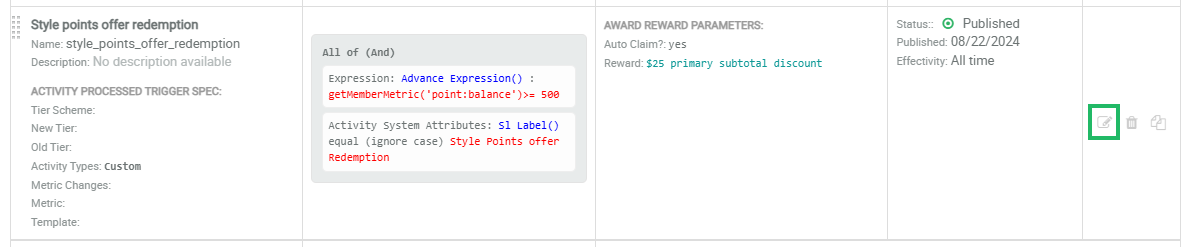
Next to the desired Triggered Action, click the Edit icon. The Edit Trigger tabbed modal is displayed.
-
The Edit Trigger modal is split into multiple tabs. Select the desired tab and enter the desired configuration options. See below for details on these tabs, and the options available in each.
-
Optionally, click Next to save your changes and display the next tab in the sequence.
Note: When you attempt to navigate to a new tab, the platform evaluates the information on the current tab. If any information is invalid or missing, an error message is displayed.
-
When finished, click Close (or click Save on the Status & Effectivity tab).
Basic Information
The Basic Information tab displays the high-level properties of the Triggered Action. To edit any of the properties:
-
Select the Basic Information tab.
-
The following properties are displayed. Make any necessary changes:
-
Display Name: The user-facing name of the Triggered Action.
-
Internal Name: The internal name of the Triggered Action. To edit the Internal Name, check Edit Internal Name. A confirmation dialog box is displayed; click Ok. Edit the Internal Name value.
-
Description: The description of the Triggered Action.
-
Cloned From: If this Triggered Action was created by copying another Triggered Action, the name of the “parent” Triggered Action is displayed. If that parent Triggered Action still exists, you can click this link to switch the Edit Trigger modal to show the parent’s details. If the parent Triggered Action has been deleted, the link is disabled. The Cloned From field will show only the immediate parent. For example, if you make a copy of a copy, the Cloned From field will show the immediate parent, and not the “grandparent.”
-
Trigger Grouping: The Trigger Group to which this Triggered Action is assigned.
-
Trigger Type: The action or behavior for which this Triggered Action is monitoring.
-
Trigger Definition: This section varies depending on the selected Trigger Type (see below for details).
-
 Activity Processed
The Activity Processed Trigger Type will execute when the selected Activity Type is recorded by the platform for a Member.
-
From the Trigger Type drop-down menu, select Activity Processed.
-
In the Activity Types field, select one or more Activity Types. If you select multiple Activity Types, the Triggered Action will execute if any of the selected Activity Types is recorded.
-
Optionally, from the Metric Changed field, select one or more Metric Types. If selected, the platform will execute this Triggered Action only if the Activity processing causes a change in value of one of the specified Metrics.
Tier Changed
The Tier Changed Trigger Type will execute when a Member moves into a new Tier.
-
From the Trigger Type drop-down menu, select Tier Changed.
-
From the Tier Scheme drop-down menu, select a Tier Scheme.
-
Optionally, from the New Tier drop-down menu, select the Member’s "new" Tier. If specified, the platform will execute the Triggered Action upon a Member's change in Tier, only if this is the Member's new Tier.
-
Optionally, from the Old Tier drop-down menu, select the Member’s "old" Tier level. If specified, the platform will execute the Triggered Action upon a Member's change in Tier, only if this is the Member's previous Tier.
Note: If you specify both the New Tier and the Old Tier, then both options must be satisfied to execute the Triggered Action. If neither option is specified, the platform will execute the Triggered Action upon any Tier change.
Metric Changed
The Metric Changed Trigger Type will execute when a Member’s Metric balance changes.
-
From the Trigger Type drop-down menu, select Metric Changed.
-
From the Metric drop-down menu, select the desired Metric .
Conditions & Expressions
The Conditions & Expressions tab is used to define the conditions for the Triggered Action. A Triggered Action will execute only if the conditions are met. The use of conditions in a Triggered Action is optional.
A condition consists of one or more logical statements (called Rules) joined with logical operators (AND / OR). A Triggered Action can optionally include multiple conditions.
To define the conditions for a Triggered Action:
-
Select the Conditions & Expression tab.
-
Click the Add icon, then select Add Rule. The platform adds a new blank row.
-
The first drop-down menu is populated with all of the different object types in Loyalty that are available for use. From this drop-down menu, select one of the following object types to expand it and see the available options:
Attributes
This option allows you to define a logical statement based on a value in a Member Attribute.
-
From the menu, select the desired Member Attribute.
-
Select a mathematical operator; the available operators will vary based on the Data Type of the item you selected above.
-
Enter or select a value.
Preferences
This option allows you to define a logical statement based on a value in a Member Preference.
-
From the menu, select the desired Member Preference.
-
Select a mathematical operator.
-
Enter or select a value.
Activities
This option allows you to define a logical statement by performing a mathematical calculation on a selected Activity Type.
-
From the menu, select the desired calculation method: Aggregate, Count, or Recency.
-
From the second drop-down menu, select the desired Activity Type.
-
Select a mathematical operator.
-
Enter or select a value.
-
Based on the selected calculation method, the platform provides the option to enter additional criteria:
-
Count: Define a time period, such as "Is In Last 3 Months." The use of a time period is optional, but recommended to improve system performance.
-
Aggregate: Select how to perform the aggregation: either by picking an Attribute on which to aggregate, or by entering a Groovy expression. Select the Aggregate Function: Sum, Minimum, or Maximum. Define a time period, such as "Is In Last 3 Months." The use of a time period is optional, but recommended to improve system performance.
-
Metrics
This option allows you to define a logical statement using a Member's history of Metric usage.
-
From the menu, select the desired usage type: Balance, Earn, Expire, or Redeem.
-
From the second drop-down menu, select the desired Metric.
-
Select a mathematical operator.
-
Enter or select a value.
-
For the Earn, Expire, and Redeem Metric usage types, define a time period, such as "Is In Last 3 Months." The use of a time period is optional, but recommended to improve system performance.
Helpers
This option allows you to define a logical statement by referencing either a Lookup table or a Member Function.
-
From the menu, select either Lookup or Function.
-
From the second drop-down menu, select the desired Lookup table or Member Function.
-
Select a mathematical operator.
-
Enter or select a value.
-
If you selected a Lookup table and it has Parameters defined, select the Attribute on which to match.
-
If you selected a Member Function and it has Arguments defined, select the Attribute on which to match.
Expression
This option allows you to define a logical statement using a Groovy expression.
-
From the menu, select Advanced Expression.
-
In the code editor field, enter the desired Groovy expression.
Activity Attributes
Note: This option is displayed only if the selected Triggered Action has a Trigger Type of Activity Processed.
This option allows you to define a logical statement based on a value in an Activity Attribute.
-
From the menu, select the desired Activity Attribute.
-
Select a mathematical operator; the available operators will vary based on the Data Type of the item you selected above.
-
Enter or select a value.
Activity System Attributes
This option allows you to define a logical statement based on a value in an Activity System Attribute.
-
From the menu, select the desired Activity System Attribute.
-
Select a mathematical operator; the available operators will vary based on the Data Type of the item you selected above.
-
Enter or select a value.
-
Repeat the above steps as needed to define more Rules. Optionally, to delete a Rule, click the Delete icon next to it. To delete an entire Rule Group, click the Delete icon just above the nested box representing the Group.
-
Once you define more than one Rule, select the logical operator from the Include customers that meet drop-down menu:
-
All of the following: Use an 'AND' operator such that all Rules must be true for a record to be selected.
-
Some of the following: Use an 'OR' operator such that at least one of the Rules must be true for a record to be selected.
-
-
Optionally, you can also organize Rules into Rule Groups. A Rule Group allows you to build more complex selection criteria. To create a Rule Group, click the Add icon, then select Add Rule Group. The platform creates a Group, which is represented visually as a nested box with its own operator and Add icon. Within this Group box, click the Add icon to define the Rule (or Rules) using the same process as described above. Use the toggle within the Group box to define the logical operator for the Rules within the Group.
Note: By clicking the Group button inside the Group box, you can create "nested" groups.
-
As you define Rules through the user interface, the platform builds a Groovy expression. To see this Groovy Expression, click Show Expression. The Show Expression pop-up window is displayed. When finished, click Close.
-
Optionally, to delete a condition, click Remove Condition.
-
Optionally, to define another condition, click Add Condition and repeat the above steps. Multiple conditions are always joined with an AND operator.
Actions & Settings
When the trigger definition occurs, and if the conditions are satisfied (if applicable), the platform will execute a selected action. This action is defined on the Action & Settings tab.
Note: Only one action can be assigned to a Triggered Action. If you need the platform to perform multiple actions, you need to define separate Triggered Actions for each one. You can then use Trigger Groups to control the relationship between those different Triggered Actions.
To identify what action the platform should execute:
-
Select the Action & Settings tab.
-
From the Action Type drop-down menu, select the desired action. The Loyalty platform supports a wide range of actions, such as sending a message, granting an Reward, or updating a Member Attribute. See Action Types for more details.
-
Depending on the action type you selected above, the modal displays additional properties that you must enter or select in order to configure the action. For example, if you selected Grant Award, you will be prompted to select the desired Reward to grant. Or, if you selected Update Attribute, you will be prompted to pick the Attribute, and enter its new value.
Most action types support the use of custom parameters. To add custom parameters to the selected action:
-
In the Custom Parameters section, click Add. The platform adds a new row for defining a key / value pair.
-
By default the custom parameter is enabled. Optionally, uncheck Enabled to disable it.
-
In the Name field, enter the name of the parameter.
-
In the Value field, either:
-
Check Static, then enter a value.
-
Uncheck Static, then enter a Groovy calculated function to select or derive a value. See Calculation Functions for a list of commonly-used functions.
-
-
Repeat the above steps as needed to define additional custom parameters. Optionally, to delete a custom parameter, click the Delete icon next to it.
Status & Effectivity
The Status & Effectivity tab allows you to set the Triggered Action status, and to define when, and for how long, the Triggered Action is considered live and usable.
To set the Triggered Action’s status:
-
Select the Status & Effectivity tab.
-
From the Status drop-down menu, select the status of the Triggered Action: Draft, Published, or Archived.
To set the Triggered Action’s effectivity period:
-
Select the Status & Effectivity tab.
-
Next to Effectivity, select either:
-
Always: This Triggered Action doesn't expire.
-
Scheduled: Enter a start date and end date, and select a time zone. Optionally, check Recurring to use a recurring schedule. Select the desired schedule from the Recurring Schedule drop-down menu, or define a new recurring schedule (see below for details on that process).
-
Recurring Schedule
To define a new recurring schedule:
-
From the Recurring Schedule drop down menu, select Enter Schedule. The Repeat pop-up window is displayed.
-
From the Count drop-down menu, select a recurrence frequency of either Weekly or Monthly.
-
In the text field, enter the interval. Enter 1 if you want the schedule to run every week, or every month.
-
For a Weekly frequency, select one or more days of the week. For example, Tuesdays and Thursdays.
-
For a Monthly frequency, choose one of the following options:
-
Day of month: Select one or more days of the month. For example, the 15th and the 30th.
-
Day of week: Select one or more days of the week, for each of the four weeks within a month. For example, the second Wednesday of the month.
-
-
Click Confirm. The system adds the new schedule to the Recurring Schedule drop-down menu.